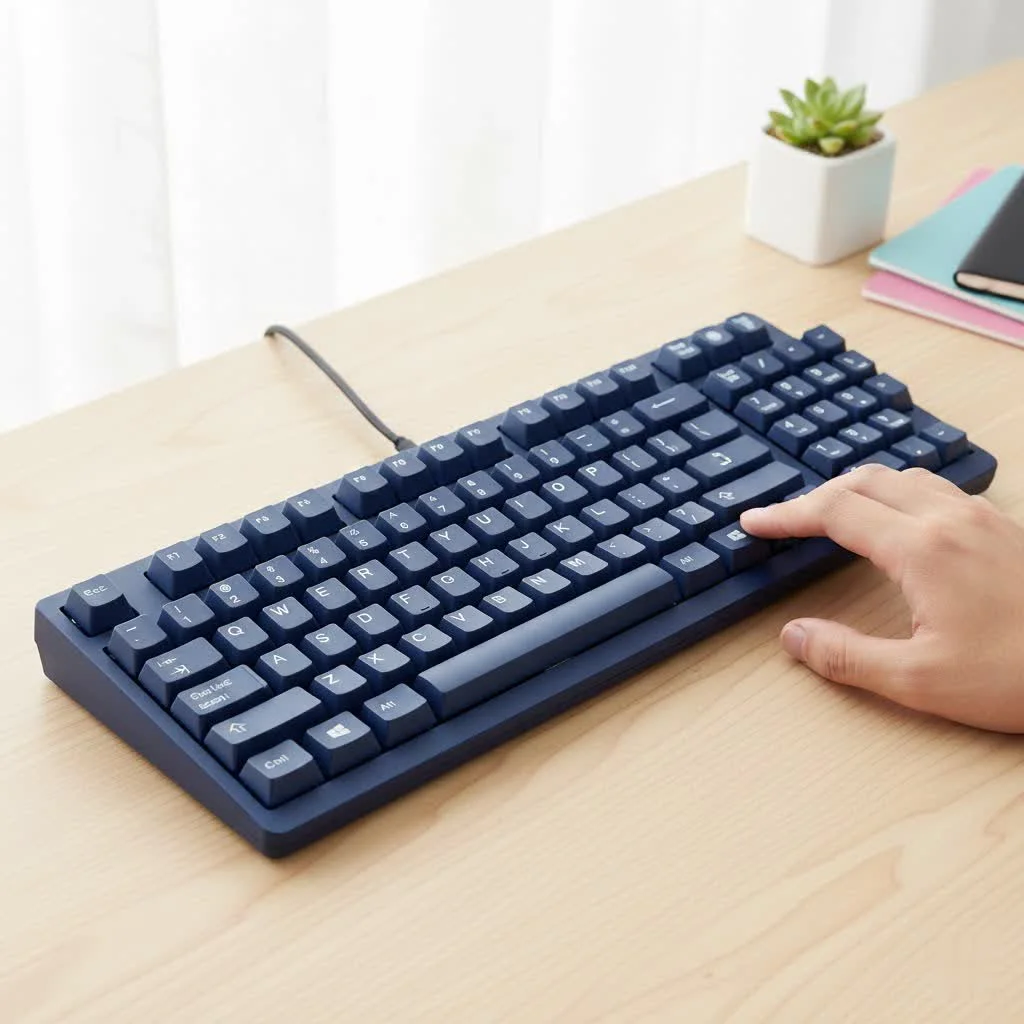
Upgrading to a mechanical keyboard for Mac significantly enhances typing comfort, speed, and customization compared to the standard Apple Magic Keyboard. These keyboards feature individual physical switches under each key, providing superior tactile and auditory feedback, increased durability (50 million+ keystrokes), and extensive customization options like swappable switches and keycaps. For Mac users, this translates to fewer typos, reduced finger fatigue, and seamless integration with macOS through dedicated layouts and powerful software.
Why Upgrade from Your Apple Keyboard?
The leap from a standard Apple keyboard to a mechanical one is significant. While the sleek, low-profile design of the Magic Keyboard is iconic, it prioritizes form over ergonomic function for many users. The short key travel can lead to bottoming out—forcefully pressing the key to its base—which causes finger strain over long sessions.
A mechanical keyboard for Mac offers tangible benefits:
- Superior Typing Feel: The distinct feedback from mechanical switches confirms each keystroke, leading to greater accuracy and speed. You feel the actuation, rather than just pressing on a flat surface.
- Ergonomic Comfort: Many mechanical keyboards are designed with ergonomics in mind, featuring sculpted keycaps and adjustable angles that promote a more natural hand and wrist posture. This can be a lifesaver for anyone suffering from or trying to prevent repetitive strain injury (RSI).
- Unmatched Durability: Mechanical switches are rated for tens of millions of keystrokes, often 50 million or more. Compare that to the 5-10 million of a typical membrane keyboard, and you have a device built to last for years, not just until your next computer upgrade.
- Endless Customization: This is where the magic truly happens. You can change switches to get the exact feel you want, swap keycaps for a personalized look, and even reprogram the entire layout to optimize your workflow.
What Makes a Keyboard a Great Mechanical Keyboard for Mac?
Not every mechanical keyboard is plug-and-play friendly with macOS. To ensure a seamless experience, you need to look for a few Mac-specific features. The days of complicated workarounds are over; many manufacturers now design their products with Apple users in mind from the start.
Native macOS Layout and Keycaps
The most crucial feature is a dedicated Mac mode or layout. This means the keyboard comes with the essential Mac modifier keys: Command (⌘) and Option (⌥). The best keyboards will include extra keycaps in the box, so you can physically swap the Windows (Alt, Win) keys for their Mac equivalents. Look for a physical switch or a simple key combination (like Fn + M) to toggle between Windows and Mac layouts instantly.
Seamless Connectivity
|
Our Picks for the Best Mechanical Keyboard in 2026
As an Amazon Associate I earn from qualifying purchases.
|
||
| Num | Product | Action |
|---|---|---|
| 1 | RK ROYAL KLUDGE R98 Pro Wired Mechanical Keyboard, 96% Creamy Gaming Keyboard RGB Backlit with Number Pad and Volume Knob, Gasket Mount, MDA Profile PBT Keycaps, Hot Swappable Pre-lubed Linear Switch |

|
| 2 | AULA F75 Pro Wireless Mechanical Keyboard,75% Hot Swappable Custom Keyboard with Knob,RGB Backlit,Pre-lubed Reaper Switches,Side Printed PBT Keycaps,2.4GHz/USB-C/BT5.0 Mechanical Gaming Keyboards |
|
| 3 | Womier S-K80 75% Keyboard with Color Multimedia Display Mechanical Gaming Keyboard Creamy Sound, Wired Hot Swappable Gasket Mount RGB Custom Key board, Pre-lubed Stabilizer for Mac/Win, Black Kanagawa |
|
| 4 | AK96 Smart Mechanical Keyboard Gaming, 96 Keys Full Size with LED Colorful Backlit, Clicky Creamy Sounding, USB Wired Computer Keyboard with Volume Knob for PC, Mac, Windows(Grey) |
|
| 5 | EPOMAKER x Aula F75 Gasket Mechanical Keyboard, 75% Wireless Hot Swappable Gaming Keyboard with Five-Layer Padding&Knob, Bluetooth/2.4GHz/USB-C, RGB (Light Blue, LEOBOG Reaper Switch) |
|
| 6 | Logitech MX Mechanical Wireless Illuminated Performance Keyboard, Tactile Quiet Switches, Backlit Keys, Bluetooth, USB-C, macOS, Windows, Linux, iOS, Android, Metal, Graphite |
|
| 7 | AULA F99 Wireless Mechanical Keyboard,Tri-Mode BT5.0/2.4GHz/USB-C Hot Swappable Custom Keyboard,Pre-lubed Linear Switches,RGB Backlit Computer Gaming Keyboards for PC/Tablet/PS/Xbox |
|
| 8 | Redragon Mechanical Gaming Keyboard Wired, 11 Programmable Backlit Modes, Hot-Swappable Red Switch, Anti-Ghosting, Double-Shot PBT Keycaps, Light Up Keyboard for PC Mac |
|
| 9 | RK ROYAL KLUDGE S98 Mechanical Keyboard w/Smart Display & Knob, Top Mount 96% Wireless Mechanical Keyboard BT/2.4G/USB-C, Hot Swappable, Software Support, Creamy Sounding, 98 Keys |
|
| 10 | SteelSeries USB Apex 5 Hybrid Mechanical Gaming Keyboard – Per-Key RGB Illumination – Aircraft Grade Aluminum Alloy Frame – OLED Smart Display (Hybrid Blue Switch) |
|
How your keyboard connects to your Mac is a key consideration.
- Bluetooth: For a clean, wireless setup, Bluetooth is a must. Look for keyboards that support Bluetooth 5.0 or higher for a stable, low-latency connection. Multi-device pairing is another fantastic feature, allowing you to switch between your Mac, iPad, and even your iPhone with a single keypress.
- USB-C: A wired connection provides the most stable, zero-latency experience, which is critical for gaming or high-stakes work. Since modern Macs are all-in on USB-C, a keyboard with a detachable USB-C cable is the gold standard for a reliable and future-proof setup.
- 2.4GHz Wireless: Some keyboards offer a third option via a USB dongle. This provides a lower latency wireless connection than Bluetooth, making it a great middle-ground for gamers who want to cut the cord without compromising performance.
Powerful Customization Software (VIA/QMK)
The ultimate power move for any mechanical keyboard user is programmability. VIA and QMK are open-source firmware platforms that let you remap any key, create complex macros, and customize layers without needing clunky, proprietary software. A VIA-compatible keyboard is especially ideal for Mac users because the configuration tool is web-based or a simple app, allowing you to make changes on the fly that are saved directly to the keyboard’s memory.
“For a creative professional on a Mac, a VIA-compatible mechanical keyboard isn’t just a tool; it’s an extension of your workflow,” says professional designer Chloe Vance. “Being able to map complex shortcuts in Photoshop or Final Cut to a single key press saves hours every week. It’s a level of efficiency the Magic Keyboard can’t touch.”
How to Choose the Perfect Switches for Your Mac
The switch is the heart of a mechanical keyboard, defining how each key feels and sounds. There is no single “best” switch; it’s all about personal preference and your primary use case.
For the Writer and Everyday User: Tactile Switches
- Feel: A noticeable “bump” in the middle of the keypress lets you know the key has been activated.
- Sound: Quiet to moderate click.
- Best for: Typing, coding, general productivity. The tactile feedback helps improve accuracy and reduce typos without being overly loud.
- Popular Examples: Brown switches (e.g., Gateron G Pro Brown, Cherry MX Brown).
For the Gamer and Programmer: Linear Switches
- Feel: A smooth, consistent press from top to bottom with no bump.
- Sound: The quietest of the three types.
- Best for: Gaming, where rapid, repeated keystrokes are common, and programming. The smooth action prevents finger fatigue during long sessions.
- Popular Examples: Red switches (e.g., Gateron G Pro Red, Cherry MX Red).
For the Enthusiast Who Loves Feedback: Clicky Switches
- Feel: A tactile bump combined with a sharp, satisfying “click” sound.
- Sound: Loud and distinct.
- Best for: Typists who crave auditory confirmation for every keystroke and want the classic “typewriter” experience. Be warned: they may not be suitable for quiet office environments.
- Popular Examples: Blue switches (e.g., Gateron Blue, Cherry MX Blue).
Getting Started with Keyboard Modding on Your Mac
Once you have your mechanical keyboard for Mac, the fun doesn’t have to stop. The world of “modding” allows you to fine-tune your keyboard’s sound and feel.
- Lube Switches: Applying a thin layer of special lubricant to the inside of your switches makes them feel smoother and sound deeper.
- Stabilizer Modding: Tuning the stabilizers (the wires under larger keys like the spacebar and shift) eliminates rattle and creates a more solid, premium sound.
- Sound Dampening: Adding foam or silicone inside the keyboard case absorbs vibrations and hollow sounds, resulting in a quieter and more pleasant “thocky” sound profile.
These simple mods can elevate a good keyboard into a great one, fully customized to your personal taste.
Frequently Asked Questions (FAQ)
Can I use any USB mechanical keyboard with a Mac?
Yes, almost any USB keyboard will work. However, you will have to manually remap the Windows and Alt keys to function as Command and Option in macOS System Settings. Keyboards designed specifically for Mac offer a much more streamlined, out-of-the-box experience.
Do I need special software for my mechanical keyboard on macOS?
For most keyboards, no software is needed for basic functionality. However, to customize lighting, macros, and keymaps, you will need either the manufacturer’s software (make sure it’s Mac-compatible) or, ideally, use a keyboard that supports VIA or QMK for easy, driverless configuration.
Are low-profile mechanical keyboards a good option?
Absolutely. Low-profile mechanical keyboards offer a great middle ground between the feel of a traditional mechanical board and the slim aesthetic of an Apple keyboard. They use shorter switches and keycaps, which can be more comfortable for users accustomed to laptop-style keyboards.
How do I clean my mechanical keyboard?
Regular cleaning is simple. You can use a keycap puller (often included with the keyboard) to remove the keycaps. Once removed, you can wipe the keycaps clean and use compressed air or a soft brush to remove dust and debris from the keyboard plate.
Is a hot-swappable keyboard better?
For beginners and enthusiasts alike, hot-swappable keyboards are highly recommended. They have special sockets that allow you to change switches easily without any soldering. This lets you experiment with different switch types to find your perfect feel without having to buy a whole new keyboard.
Your Mac Deserves a Better Typing Experience
Making the switch to a mechanical keyboard for Mac is one of the most impactful upgrades you can make to your setup. It’s an investment in your comfort, productivity, and daily enjoyment of your work. From the satisfying feedback of a tactile switch to the deep customization of a VIA-programmable board, there is a perfect keyboard out there waiting to improve your desk. Take the time to consider what you need—whether it’s wireless convenience, ergonomic support, or a specific typing feel—and get ready to rediscover the joy of typing.
Frequently Asked Questions
Can I use any USB mechanical keyboard with a Mac?
Yes, nearly any USB mechanical keyboard will function with a Mac. However, you will need to manually remap the Windows and Alt keys to Command and Option within macOS System Settings for proper functionality. Keyboards specifically designed for Mac offer a more seamless, out-of-the-box experience with native key layouts.
Do I need special software for my mechanical keyboard on macOS?
Basic functionality for most mechanical keyboards does not require special software on macOS. For advanced customization like lighting, macros, and key remapping, you will need either the manufacturer's Mac-compatible software or a keyboard that supports open-source firmware like VIA or QMK for driverless configuration.
Are low-profile mechanical keyboards a good option for Mac users?
Yes, low-profile mechanical keyboards are an excellent option, especially for Mac users accustomed to laptop-style keyboards. They feature shorter switches and keycaps, providing a comfortable typing experience that balances the tactile feel of a traditional mechanical board with a slimmer aesthetic similar to Apple's designs.
How do I clean my mechanical keyboard effectively?
To clean your mechanical keyboard, use a keycap puller to remove the keycaps. Once removed, you can wipe the keycaps clean with a cloth and use compressed air or a soft brush to remove dust and debris from the keyboard plate and around the switches. This regular maintenance helps maintain performance.
Is a hot-swappable mechanical keyboard a better choice?
Hot-swappable mechanical keyboards are highly recommended for both beginners and enthusiasts. They feature special sockets that allow you to change switches without soldering, enabling easy experimentation with different switch types to find your preferred feel and sound without purchasing an entirely new keyboard.
Get our weekly buyer guide
Practical specs, not advice. Unsubscribe anytime.
As a long-time Mac user, I was skeptical about leaving the sleek Apple aesthetic, but the durability and customization options of mechanical keyboards won me over. Being able to swap out keycaps and switches means I can truly personalize my setup. It’s a significant upgrade in terms of comfort and overall typing experience, especially for someone who types all day.
I got a mechanical keyboard after reading about how it helps with bottoming out, which was a big issue for me with the Magic Keyboard. While the typing experience is much better, I found the software integration with macOS a bit clunky at first. It took some fiddling to get all my custom keybinds working perfectly, which was a little frustrating.
I’ve been using a mechanical keyboard for my Mac for about six months now, and it’s a game-changer. The tactile feedback is so much better than the Magic Keyboard, and I’ve noticed a real reduction in finger fatigue during long coding sessions. I went with a hot-swappable model, which was a great recommendation, as I’ve already tried a couple of different switch types.
Finally made the switch to a mechanical keyboard for my MacBook Pro, and I’m really happy with it. The guide helped me understand the different switch types, and I ended up going with some brown switches for a good balance of tactile feel without being too loud for my office. My typing speed has definitely improved, and I’m making fewer typos.