A mechanical keyboard with a screen integrates a small digital display, typically an OLED or LCD panel, directly into the keyboard’s frame, offering real-time system monitoring, extensive customization with GIFs or logos, productivity notifications, and in-game statistics. This feature transforms the keyboard into a dynamic command center, enhancing user interaction and personalization without requiring users to switch applications or glance at a second monitor. Dr. Evelyn Reed, an expert in peripheral design, notes that this integration decentralizes information, moving critical data to a more immediate, glanceable location.
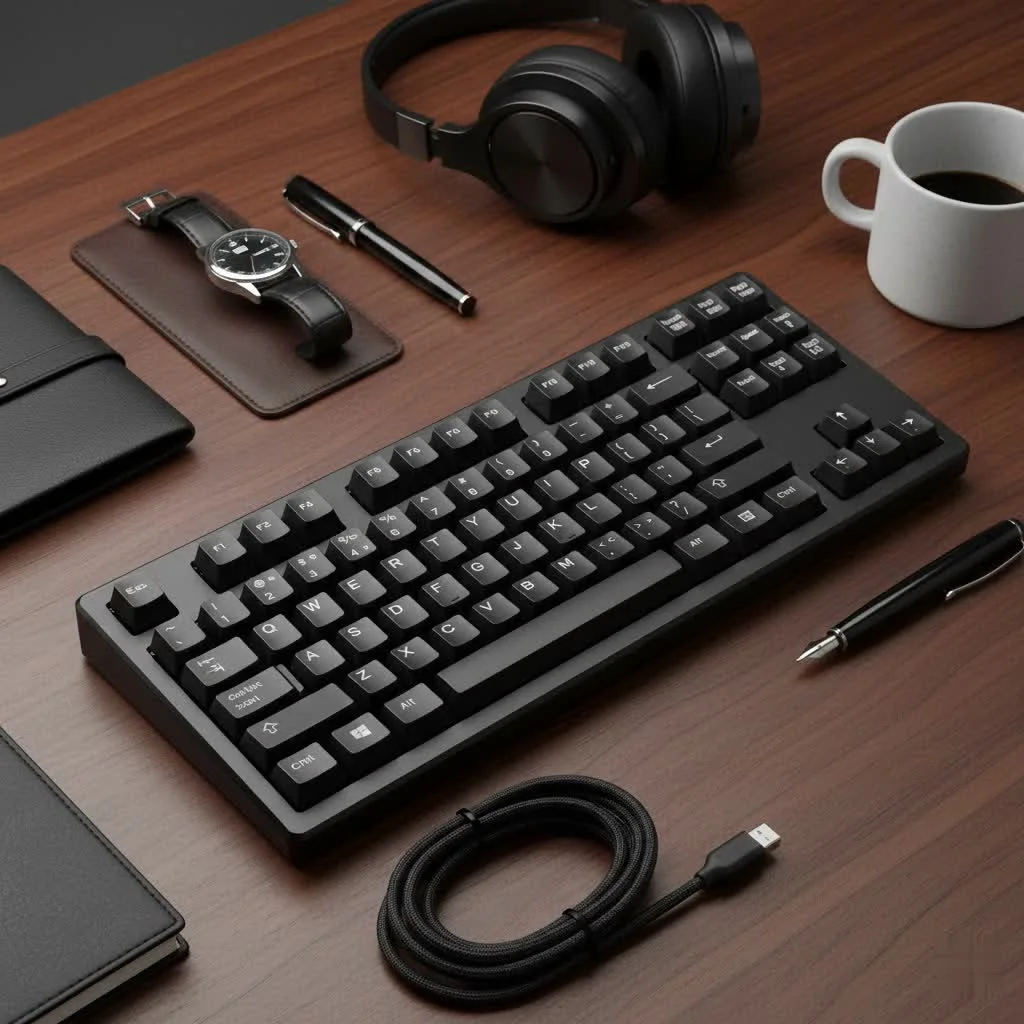
As a mechanical engineer and the creative force behind Yoasy.com, I’ve spent over a decade deconstructing, building, and modifying keyboards. I’ve seen trends come and go, but the integration of displays feels different. It represents a practical leap forward, adding a command center to the device we use most. But is it a game-changing feature or a distracting gimmick? This comprehensive guide will explore what these keyboards offer, how they work, and whether one deserves a spot on your desk. For shop curated reviews on this site.
What Can a Keyboard Screen Actually Do?
At its core, a mechanical keyboard with a screen incorporates a small digital display, typically an OLED or LCD panel, directly into the keyboard’s frame. The functionality of this screen is driven by software and can range from purely aesthetic to deeply practical. It’s a dynamic space that can be configured to show a wealth of information, eliminating the need to alt-tab or glance at a second monitor.
Here’s a breakdown of the most common use cases:
- System Monitoring: Keep an eye on your PC’s vital signs in real-time. You can display CPU and GPU temperatures, fan speeds, RAM usage, and network speeds. For overclockers and performance enthusiasts, this is invaluable data.
- Customization and Aesthetics: This is often the biggest draw. You can display custom logos, animated GIFs, or even short video clips. It’s the ultimate way to personalize your setup and make your keyboard uniquely yours.
- Productivity and Notifications: The screen can show incoming messages from Discord, Slack, or email, display the time and date, or even act as a media controller, showing the current track playing from Spotify. Some models allow you to see which profile or layer is active, which is a massive help for complex macro setups.
- Gaming Integration: For gamers, the screen can be a tactical advantage. Imagine seeing your K/D ratio, in-game stats, or notifications from supported games like CS:GO or Minecraft without cluttering your main display.
As Dr. Evelyn Reed, a leading expert in peripheral design, notes, “Integrating displays into keyboards is a natural progression of user interface design. It decentralizes information, moving critical or personalized data from the primary monitor to a more immediate, glanceable location. This enhances both efficiency and the user’s sense of connection to their hardware.”
The Best Mechanical Keyboards with a Screen
The market is expanding, with options available for different users, from dedicated gamers to custom build enthusiasts. While features vary, these models represent the best of what’s currently available.
For All-Around Performance: SteelSeries Apex Pro TKL
|
Our Picks for the Best Mechanical Keyboard in 2026
As an Amazon Associate I earn from qualifying purchases.
|
||
| Num | Product | Action |
|---|---|---|
| 1 | Logitech MX Mechanical Wireless Illuminated Performance Keyboard, Tactile Quiet Switches, Backlit Keys, Bluetooth, USB-C, macOS, Windows, Linux, iOS, Android, Metal, Graphite |

|
| 2 | AULA F75 Pro Wireless Mechanical Keyboard,75% Hot Swappable Custom Keyboard with Knob,RGB Backlit,Pre-lubed Reaper Switches,Side Printed PBT Keycaps,2.4GHz/USB-C/BT5.0 Mechanical Gaming Keyboards |
|
| 3 | SteelSeries USB Apex 5 Hybrid Mechanical Gaming Keyboard – Per-Key RGB Illumination – Aircraft Grade Aluminum Alloy Frame – OLED Smart Display (Hybrid Blue Switch) |
|
| 4 | Womier S-K80 75% Keyboard with Color Multimedia Display Mechanical Gaming Keyboard Creamy Sound, Wired Hot Swappable Gasket Mount RGB Custom Key board, Pre-lubed Stabilizer for Mac/Win, Black Kanagawa |
|
| 5 | Redragon Mechanical Gaming Keyboard Wired, 11 Programmable Backlit Modes, Hot-Swappable Red Switch, Anti-Ghosting, Double-Shot PBT Keycaps, Light Up Keyboard for PC Mac |
|
| 6 | RK ROYAL KLUDGE S98 Mechanical Keyboard w/Smart Display & Knob, Top Mount 96% Wireless Mechanical Keyboard BT/2.4G/USB-C, Hot Swappable, Software Support, Creamy Sounding, 98 Keys |
|
| 7 | AK96 Smart Mechanical Keyboard Gaming, 96 Keys Full Size with LED Colorful Backlit, Clicky Creamy Sounding, USB Wired Computer Keyboard with Volume Knob for PC, Mac, Windows(Grey) |
|
| 8 | RK ROYAL KLUDGE R98 Pro Wired Mechanical Keyboard, 96% Creamy Gaming Keyboard RGB Backlit with Number Pad and Volume Knob, Gasket Mount, MDA Profile PBT Keycaps, Hot Swappable Pre-lubed Linear Switch |
|
| 9 | AULA F99 Wireless Mechanical Keyboard,Tri-Mode BT5.0/2.4GHz/USB-C Hot Swappable Custom Keyboard,Pre-lubed Linear Switches,RGB Backlit Computer Gaming Keyboards for PC/Tablet/PS/Xbox |
|
| 10 | EPOMAKER x Aula F75 Gasket Mechanical Keyboard, 75% Wireless Hot Swappable Gaming Keyboard with Five-Layer Padding&Knob, Bluetooth/2.4GHz/USB-C, RGB (Light Blue, LEOBOG Reaper Switch) |
|
The SteelSeries Apex Pro series has long been a favorite, and its OLED Smart Display is a cornerstone of its design. It’s not just for show; it allows you to adjust settings, change profiles, and see notifications on the fly without ever leaving your game or application. Paired with their adjustable OmniPoint switches, the Apex Pro offers a blend of high-end performance and practical screen functionality that is hard to beat. The integration with the SteelSeries Engine software is seamless, making customization a breeze.
For the Aesthete: Higround Performance Series
Higround has made a name for itself with visually stunning, limited-edition keyboard designs. Many of their Performance Series keyboards include a small, vibrant screen that is primarily used for displaying GIFs and custom animations. While its functional depth might not match that of the Apex Pro, its purpose is to be the aesthetic centerpiece of your desk. If you value design and want a keyboard that’s a work of art, Higround is a fantastic choice.
For the Custom Build Enthusiast: Keychron Q Series
Keychron has become a giant in the custom keyboard scene. Many of their popular “Q” series keyboards, like the Q1 Pro, can be configured with a small rotary knob. However, for a true screen experience, you can look to models like the Keychron Q12, which has a dedicated macro pad on the left side that often includes a screen. For tinkerers, the real magic lies in their QMK/VIA compatibility. This open-source firmware allows for deep customization, letting advanced users program the screen to display almost anything they can imagine, from layer indicators to a Pong animation.
Are Keyboards with Screens Worth the Investment?
Adding a screen to a keyboard introduces complexity and, inevitably, cost. So, is it a worthwhile feature for you? Let’s weigh the pros and cons.
Pros:
- Unmatched Customization: The ability to add a personal touch with a GIF or logo is a powerful form of self-expression.
- At-a-Glance Information: Having system stats or notifications readily available without interrupting your workflow is a significant quality-of-life improvement.
- Enhanced Functionality: In-game integration and on-the-fly settings adjustments provide tangible benefits for gamers and power users.
Cons:
- Increased Cost: Keyboards with integrated screens are premium products and carry a higher price tag.
- Potential for Distraction: An animated GIF or flashing notification can pull your focus away from the task at hand. Thankfully, most can be dimmed or turned off.
- Software Dependency: The screen’s functionality is entirely dependent on the manufacturer’s software. If the software is clunky or unsupported, the screen becomes a useless feature.
Frequently Asked Questions (FAQ)
Can I add a screen to my existing mechanical keyboard?
For most pre-built keyboards, this is not possible. However, in the custom keyboard world, if you have a QMK/VIA compatible board, you can sometimes add a small OLED display (like an SSD1306) with some soldering and firmware flashing. This is an advanced project recommended for experienced hobbyists.
Does the screen on a keyboard impact performance?
No, the screen operates on its own microcontroller and has no discernible impact on the keyboard’s input latency or your computer’s performance. The processing required is minimal.
How do I customize the content on the keyboard screen?
You will use the manufacturer’s companion software, such as SteelSeries GG, Razer Synapse, or open-source tools like VIA for compatible custom keyboards. These applications provide an interface for uploading images, GIFs, and configuring what information is displayed.
Can I turn the screen off if I find it distracting?
Yes, virtually all keyboards with a screen offer the ability to turn the display off, adjust its brightness, or set it to turn off after a period of inactivity.
What’s the difference between an OLED and LCD screen on a keyboard?
OLED screens offer better contrast with true blacks and more vibrant colors, as each pixel emits its own light. LCD screens require a backlight, so blacks may appear grayish. For the small size used in keyboards, OLED is generally preferred for its visual punch.
Final Thoughts: A Window to Your World
The mechanical keyboard with screen is more than just a fleeting trend. It represents a meaningful evolution in how we interact with our most-used peripheral. It offers a unique blend of personalization, convenience, and control that can genuinely enhance your computing experience, whether you’re gaming, working, or simply enjoying your setup.
While it may not be an essential feature for every user, for those who crave customization and appreciate glanceable information, it’s a major upgrade. It transforms the keyboard from a simple input device into a dynamic, interactive part of your digital life. As the technology becomes more refined and software support grows, we can expect these small screens to become an even more powerful and integral part of the keyboard experience. The next time you’re considering a keyboard upgrade, it’s worth asking yourself if you just want a tool for typing, or a window into your world.
Frequently Asked Questions
Can I add a screen to my existing mechanical keyboard?
For most pre-built keyboards, adding a screen is not possible. However, custom keyboard enthusiasts with QMK/VIA compatible boards can sometimes integrate a small OLED display, such as an SSD1306, through soldering and firmware flashing. This is an advanced project for experienced hobbyists.
Does the screen on a keyboard impact performance?
No, the screen operates on its own microcontroller and has no discernible impact on the keyboard's input latency or your computer's overall performance. The processing required for the display is minimal and isolated from core keyboard functions.
How do I customize the content on the keyboard screen?
Customizing the content on a keyboard screen typically involves using the manufacturer's companion software, such as SteelSeries GG or Razer Synapse. For compatible custom keyboards, open-source tools like VIA provide an interface for uploading images, GIFs, and configuring displayed information.
Can I turn the keyboard screen off if I find it distracting?
Yes, virtually all mechanical keyboards equipped with a screen offer options to turn the display off, adjust its brightness, or set it to automatically turn off after a period of inactivity. This allows users to manage potential distractions effectively.
What is the difference between an OLED and LCD screen on a keyboard?
OLED screens offer superior contrast with true blacks and more vibrant colors because each pixel emits its own light. In contrast, LCD screens require a backlight, which can result in blacks appearing grayish. For the small display sizes found on keyboards, OLED is generally preferred for its visual clarity and impact.
Get our weekly buyer guide
Practical specs, not advice. Unsubscribe anytime.

I finally pulled the trigger on a mechanical keyboard with an OLED display after reading about them. Being able to see my CPU temps and RAM usage right on the keyboard without alt-tabbing is a game changer for my workflow. The customization options for GIFs are also super fun, really makes my desk setup feel more personal. Definitely worth the investment for productivity and aesthetics.
I was skeptical about how much I’d actually use the screen on a keyboard, but it’s become indispensable. The real-time system monitoring is fantastic, especially when I’m running demanding software. It’s exactly as Dr. Evelyn Reed described, decentralizing information to a more immediate location. Plus, setting my own custom logos is a neat touch.
The idea of having a dynamic command center on my keyboard really appealed to me. I’ve been using it for a few weeks now, and the productivity notifications are surprisingly useful. It’s nice not having to constantly check my phone or switch windows for quick updates. The integration is pretty seamless, and the keys themselves have a satisfying click.
I got one of these keyboards hoping for better in-game stats at a glance, but honestly, the screen is a bit smaller than I expected. It’s cool for basic notifications, but for detailed game info, I still find myself looking at my main monitor. The mechanical switches feel great though, and the build quality is solid. Just wish the display was a tad bigger for gaming.